


Raptor Alert
3.289.00 Reviews
App Specs
- Version
- 6.1.1
- Updated On
- License
- Free
- Downloads
- 100,000+
- Developer
- Raptor Technologies, LLC
- Categories
- Education
- Platform
- Android
Screenshots
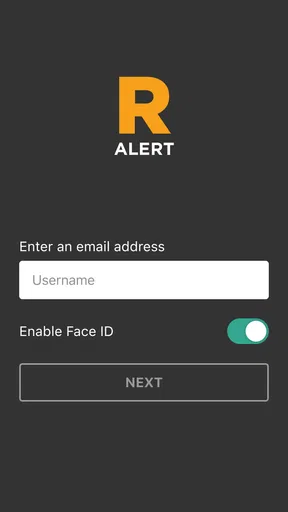
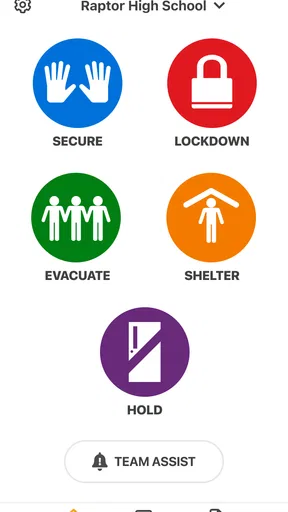
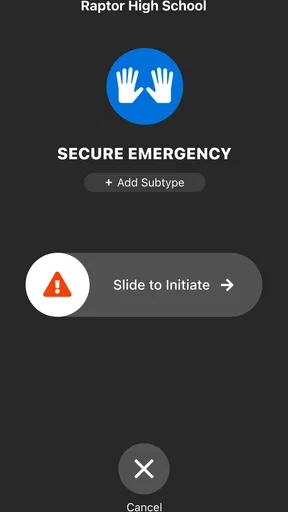
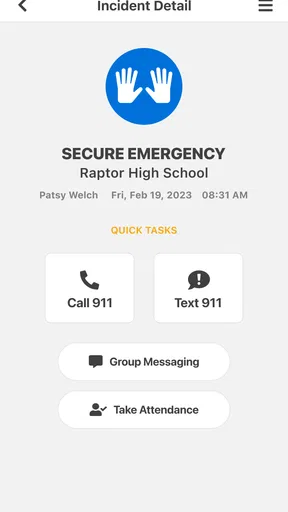
 Analysis by AppCompare
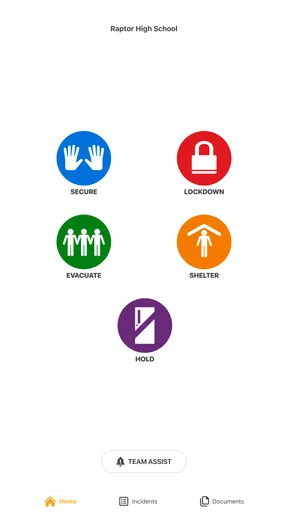
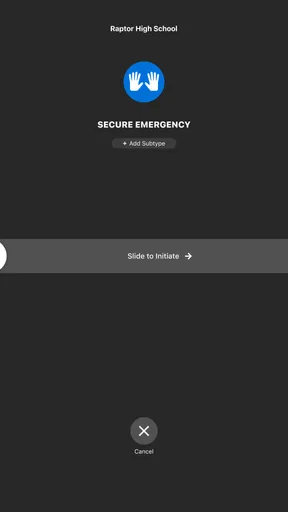
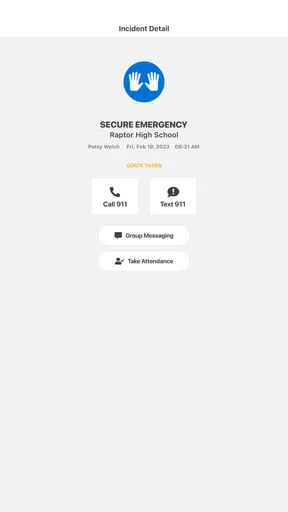
Raptor Alert is an education-focused emergency management app for K–12 communities, developed by Raptor Technologies, LLC. I see it as a specialist tool rather than something families download for everyday school updates. Its purpose is to support communication during urgent situations, so the important question is not whether it feels entertaining or feature-packed, but whether it fits the way a school already handles alerts, staff coordination, and emergency procedures.
I approached it with that distinction in mind. A school emergency app has a different standard from a homework planner or parent messaging service: speed matters, but so do clarity, dependable delivery, sensible setup, and the ability to recover when a user is stressed. The app is free and rated for Everyone, which makes it approachable from a basic access perspective, yet its usefulness depends heavily on whether the relevant school or district has adopted the Raptor system.
What using Raptor Alert feels like in practice
The first thing I would tell a friend is not to treat this as a general-purpose school communication app. The short store label, “Raptor Alert,” is brief, but the product’s role is more specific: emergency management for K–12 settings. That means a student, parent, teacher, or visitor may have very different experiences depending on their relationship with the school and the permissions attached to their account.
For a school employee, the value is potentially much greater than for a casual parent. Staff may need a focused way to receive urgent instructions rather than search through a crowded inbox, scroll past routine announcements, or wonder whether a message is current. For a family member, the app can make sense when the school has clearly told them to use it and explained what alerts it covers. Without that institutional connection, installing it alone is unlikely to turn it into a useful emergency channel.
That dependency is important. Many ordinary school apps compete by offering calendars, assignments, grades, lunch menus, attendance, direct messaging, and announcements in one place. Raptor Alert is narrower. I prefer that narrow purpose in an emergency context because fewer unrelated screens can reduce distraction, but it also means this is not a replacement for a full parent portal or classroom communication platform.
Speed expectations during an alert
Emergency software creates a natural expectation of instant response. I would be careful with that expectation. The app can be designed around urgent communication, but the experience still depends on the device, the network, the school’s configuration, and the person or team sending the alert. No mobile application can remove every delay between an incident, an administrative decision, a message being issued, and a notification appearing on a particular phone.
In my view, the most useful speed advantage is organizational rather than magical. A dedicated alert channel may help users recognize that a message deserves immediate attention, instead of mixing it with routine school news. That distinction can save time when people are already receiving many notifications. It also gives a school a clearer place to direct staff and families when normal communication feels too slow or scattered.
Worth Reading Before You Choose

EA SPORTS FC Mobile 26 Is a Bigger Football Game, but It Takes Time

Flipboard Shows What News Apps Must Do Beyond the Feed

Switching to Android Auto Means Rethinking Your Driving Routine

Google Calendar Makes a Crowded Week Easier to Manage

Ludo King Makes the Most of the Minutes Between Plans

Baby Panda World Brings Quick Play to Modern Phones, but Its Game Library Feels Busy
A practical tip is to complete the account and notification setup before an emergency occurs. Waiting until a stressful moment to install the app, sign in, locate the correct school, or decide whether notifications should be allowed defeats much of the benefit. I would also keep the phone’s operating system current enough for the app and avoid treating a silent device as proof that no alert exists. Checking the app directly can be a sensible backup habit when an incident is being actively managed.
There is a trade-off here. A specialized alert tool can be faster to understand than a broad school platform, but it may provide less context than a normal announcement system. If a school needs detailed instructions, maps, follow-up documents, or a long conversation, another channel may still be necessary. I would judge Raptor Alert as a first-response communication layer, not automatically as the complete information center for every emergency.
What happens during heavy-use moments
The most demanding situation is not ordinary browsing. It is the moment when many people may open the app or react to the same event at once. That can include staff checking instructions, families looking for confirmation, and administrators sending updates while network traffic is elevated. I cannot responsibly promise a particular loading time or guarantee uninterrupted behavior under that pressure, but I can explain how I would evaluate it.
Before relying on the app, I would open it under normal conditions, confirm that the correct school or organization is represented, and learn where current alerts appear. This small rehearsal matters because familiarity reduces tapping and searching when attention is limited. I would also make sure the phone has enough free storage and that battery-saving settings are not aggressively restricting the app’s background activity. Those are device-level precautions, not special powers of the application, but they influence the real experience.
Another useful workflow is to separate “receiving an alert” from “finding every detail.” If a notification arrives, I would read the initial instruction carefully, then use the app for the information it actually contains rather than repeatedly refreshing it in panic. Reopening the same screen again and again can waste battery and create confusion if an update has not yet been issued. When a school provides a separate emergency procedure, that procedure should remain the authority for actions beyond the message itself.
Heavy use also exposes the difference between an alert app and a chat app. In a group conversation, people may ask questions and receive replies, but a fast-moving thread can bury the main instruction. A dedicated emergency channel may be easier to scan, especially when the goal is to identify the latest official direction. On the other hand, if your main need is two-way discussion with a teacher or administrator, a conventional messaging tool may be better suited.
Stability and recovery after interruptions
Reliability is more than staying open during a quiet afternoon. I care about what happens after the phone loses connectivity, the user dismisses a notification, the app is closed, or the device restarts. Raptor Alert should be considered alongside the school’s wider emergency plan rather than as the only safety mechanism. A phone can be unavailable, muted, out of battery, or left somewhere else, so responsible schools need more than one way to communicate.
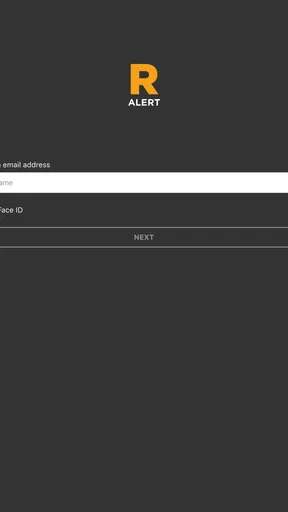
For my own setup, I would test recovery during a harmless period: close the app, reopen it, sign out only if the school’s instructions make that appropriate, and check whether the normal account path is easy to find again. I would not perform disruptive testing during a real incident. The point is to learn the ordinary recovery path before it matters. If the app asks for school-specific access or registration, the school administrator is the right person to contact rather than repeatedly reinstalling it.
That last point is easy to overlook. Reinstallation can feel like a universal fix, but in an institution-managed product it may not solve an account or enrollment problem. It can also create unnecessary delay if the user no longer remembers the original sign-in details. I would first check the school’s onboarding instructions, the phone’s notification settings, and the app’s current state. If the issue is tied to the organization’s setup, only the school or district can correct it.
My impression of stability would therefore be conditional rather than absolute. A focused app with a clear role is easier to understand than a huge platform, but its reliability is experienced as part of a chain: administrator configuration, account status, device settings, network access, and user familiarity. That is why a successful trial with a small group of staff can be more informative for a school than simply counting installations.
Device limits and everyday resource use
Raptor Alert is listed for devices using at least iOS 10 or a later operating system. That gives it a broad compatibility range, although compatibility alone does not guarantee an equally smooth experience on every older phone. Ageing hardware may have limited storage, weaker batteries, less current system support, or more aggressive background restrictions. I would be especially cautious with phones that are already struggling with ordinary apps.
For most users, an emergency alert app should not be a major daily battery burden if it is opened only when needed. Still, notification delivery and background behavior are affected by the phone’s own rules. Battery optimization, Focus or Do Not Disturb modes, restricted mobile data, and disabled notifications can all change what the user sees. These settings deserve attention before judging the application’s performance.
A good preparation routine is simple: keep notifications enabled as instructed by the school, allow the app to update through the normal app store process, maintain some free storage, and check that the phone is not permanently silenced. I would not recommend granting broad permissions casually, but I would follow the school’s official setup guidance for whatever access the app requires. Security and convenience need to be balanced, particularly when the app is connected to a child’s school environment.
The minimum operating-system requirement also helps define who should skip it or seek another route. If a family member uses an older device that cannot meet the requirement, the school should provide an alternative communication method rather than expecting the app to solve the problem. Likewise, people who do not belong to a participating K–12 organization are unlikely to gain much from downloading it simply because it is free.
Useful scenarios beyond the obvious download
One realistic scenario is a staff member arriving at school before classes begin and receiving an urgent instruction that changes where people should report. A dedicated alert channel can reduce the need to search through several unrelated school systems. The staff member still needs to follow the school’s emergency training, but the app can serve as a quick route to the official message.
A second scenario involves a parent who is away from home when a school incident occurs. The most useful preparation is not repeatedly opening the app every morning; it is completing registration, understanding how official alerts are identified, and knowing which school contact or procedure to use if the message is unclear. The app may help the parent avoid relying on rumors in a group chat, but it should not encourage speculation or unnecessary calls that overload school lines.
A third, less obvious use is administrative rehearsal. A school can evaluate whether staff know where to find an alert, whether contact details are current, and whether the wording of a message is understandable before a real crisis. That turns the app from a passive notification destination into part of a broader readiness routine. The important insight is that the software cannot compensate for vague procedures; clear training and clear messages remain essential.
I also see a trade-off between centralization and redundancy. Keeping emergency communication in one recognizable place can reduce confusion, yet depending on one phone app creates a single point of failure for anyone with a dead battery, poor signal, disabled notifications, or an unsupported device. Raptor Alert is strongest when it complements established school procedures, not when it replaces them.
How it compares with familiar school apps
Compared with a parent portal, Raptor Alert is likely to feel narrower and more urgent in purpose. A portal is usually the better choice for grades, attendance, assignments, forms, and routine school information. Compared with email, the app may offer a more focused destination for emergency notices, while email remains useful for longer explanations and records. Compared with SMS, the app can provide a dedicated experience, but text messaging may reach people who have not installed or configured an application.
Compared with a classroom chat, the advantage is focus. A chat can be excellent for questions and ongoing coordination, but emergency instructions can become difficult to locate once replies accumulate. Raptor Alert makes more sense when the institution wants official alerts separated from conversation. The disadvantage is that users may need another tool for clarification, attachments, or personal support.
That comparison leads to a clear recommendation. I would choose this app when a school or district already uses Raptor Technologies, LLC for emergency management and has given users a defined role for it. I would not choose it as a standalone replacement for school communications, nor would I install it expecting useful alerts from an organization that has not enrolled me.
Current version, reach, and overall confidence
The current release is version 6.1.1, and the app has passed one hundred thousand installs. Its average rating is 3.2 from around two hundred ratings, with close to ninety written reviews. I read those figures as a sign to keep expectations measured rather than as a reason to dismiss the product. Emergency tools are often judged by account setup, notification behavior, and institution-specific workflows, so a rating can reflect experiences that vary substantially between schools and devices.
The free price removes a direct cost barrier for users, which is helpful when a school wants broad participation. The Everyone age classification also makes the app suitable for a general K–12 audience from a content-rating standpoint. Neither point guarantees that every child should manage the app independently; families should still follow the school’s instructions about accounts, devices, and appropriate use.
What I appreciate most is the focused purpose. What makes me cautious is the dependency on preparation and institutional configuration. A user who expects a polished all-in-one school dashboard may find it too limited. A user who wants an official emergency channel connected to a participating school may find the narrow scope reassuring.
My performance verdict
Raptor Alert is best understood as a prepared emergency communication tool, not a complete school app. I would recommend it to staff and families whose K–12 organization actively supports it, provided they configure notifications, learn the basic workflow, and keep another school-approved communication route available. Its perceived speed should be judged by how quickly users recognize and act on an official alert, not by an unrealistic promise of instant delivery in every condition.
I would skip it if I needed grades, homework, routine announcements, or open-ended messaging, because a parent portal or classroom platform would serve those needs better. I would also avoid depending on it alone for safety-critical decisions. The strongest setup combines the app with clear procedures, trained staff, current contact information, and practical backup channels.
For the right school community, the free access, broad age suitability, and dedicated emergency focus make it worth installing. My final advice is to set it up during a calm week, confirm that you understand which alerts matter, check the device settings that affect notifications, and ask the school what to do if the app is unavailable. Used that way, Raptor Alert can be a sensible part of K–12 readiness, even if it is not the universal communication solution some users may expect.
Pros
- Fast alerts can help users react quickly to nearby raptor sightings.
- Location-based reports make wildlife observations easier to discover.
- Useful for birdwatchers
- hikers
- and local conservation communities.
- Crowdsourced sightings can reveal seasonal activity patterns.
- Encourages awareness and safer coexistence with birds of prey.
Cons
- Alert accuracy depends heavily on the quality of user-submitted reports.
- Some features may require location access
- affecting privacy and battery life.
- Coverage can be limited in areas with few active contributors.
- Frequent notifications may become distracting in busy regions.
- Sightings may lack photos or detailed information for verification.
FAQs for Raptor Alert
What is Raptor Alert and what is it used for?
Raptor Alert is a safety and emergency communication app designed to help participating schools, campuses, organizations, or communities send and receive urgent notifications. Depending on the institution using it, the app may provide alerts about severe weather, security incidents, closures, evacuations, or other important events. Its usefulness depends on whether your organization has enabled the service and configured your account.
How do I sign in or connect Raptor Alert to my organization?
After installing Raptor Alert, you generally need to sign in using the credentials or invitation provided by your school, employer, campus, or other participating organization. Some versions may require an organization code, verified email address, phone number, or an account created through an administrator. If you cannot access the app, contact your organization rather than creating multiple accounts or entering unverified information.
Does Raptor Alert require location, notification, or other permissions?
Raptor Alert may request permission to send push notifications, use your location, access mobile data, or operate in the background. These permissions can be important for receiving timely alerts, especially when you are away from a familiar location or connected to a participating site. You can review permissions in your device settings, but disabling notifications or background access may prevent urgent messages from appearing promptly.
Will Raptor Alert work without an internet connection?
Raptor Alert normally relies on Wi-Fi or mobile data to receive updated alerts and communicate with the service. It should not be treated as a complete offline emergency system. If your connection is unavailable, notifications may be delayed until service returns. For that reason, keep your phone charged, allow notifications, maintain a working mobile connection when possible, and follow any additional emergency instructions from local authorities.
Is Raptor Alert a replacement for emergency services?
No. Raptor Alert is intended to support communication between an organization and its users, not replace emergency services or official instructions. In an immediate life-threatening situation, contact the appropriate emergency number and follow directions from police, fire, medical personnel, or local authorities. The app’s alerts may depend on administrator settings, network availability, and your device permissions, so it should be used as one part of a broader safety plan.


